Add conditional logic to skip or branch questions
Checked against the product on November 25, 2026
Short answer
Open the Logic tab, select a question on the Flow map and use Add rule. Each rule has a When condition and a Then go to destination. Anything that matches no rule follows When no rule matches, which defaults to the next question.
Logic lets each respondent see only the questions that apply to them. Rules are set per question and are checked after that question is answered. Logic is included on every plan, including Free.
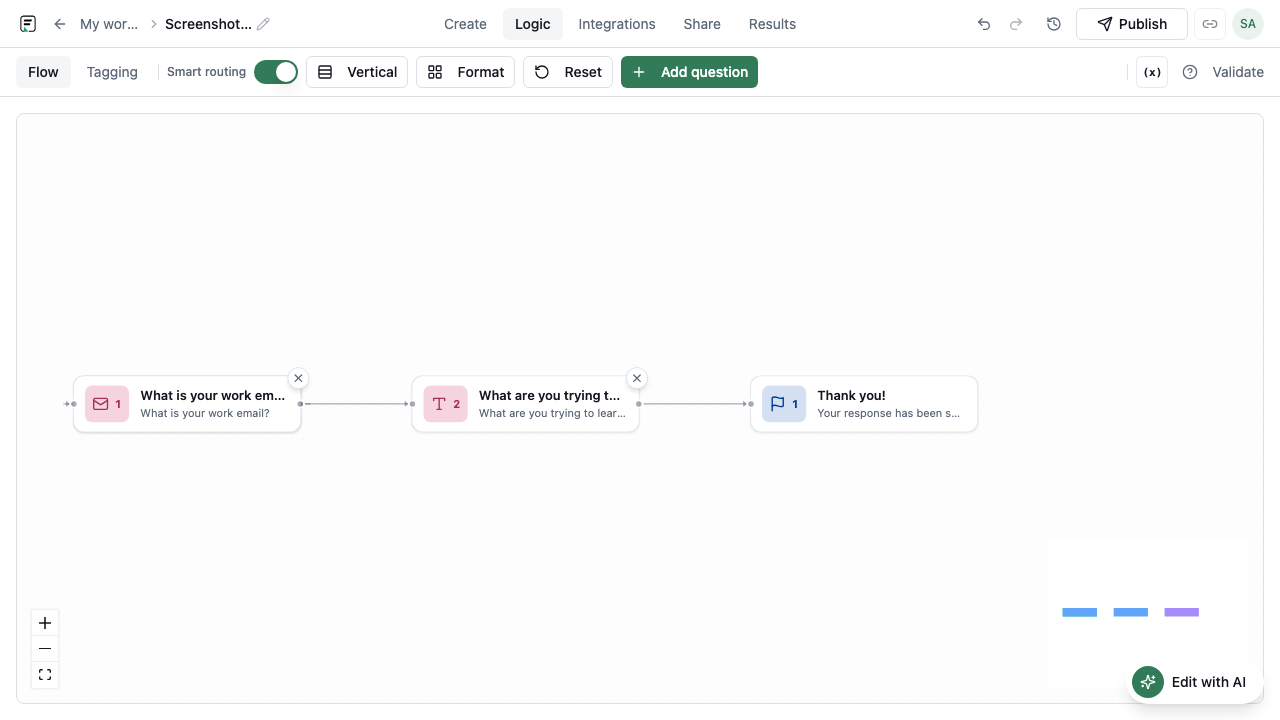
- Open the form and select the Logic tab. The Flow view shows every question as a node.
- Select the question whose answer should decide what happens next. Its settings panel opens.
- Under Branching, select Add rule.
- In the rule, set When: choose Answer and the answer that should trigger it, Metric for a score or count, or URL param for a value in the link. Add more conditions if needed and choose whether all or any must match.
- Under Then go to, choose where matching respondents go: a later question, an ending, or submit.
- Set When no rule matches for everyone else. If you leave it, they continue to the next question in order.
- Select Preview and walk through each path, then publish.
You can also drag from one question to another node on the map to create a connection, then refine the rule in the settings panel. Use Format to tidy the map and Add question to add a block from the Logic tab.
Questions
Does logic work with the Classic layout?
Yes. In Classic layout branching is applied by showing and hiding questions, so test every path before publishing.
Can I branch on how someone arrived at the form?
Yes. Use a URL param condition, for example segment equals vip, and add that parameter to the link you share.
What is the Tagging tab?
Tagging labels responses based on answers or URL parameters, which makes them easier to filter in Results.