Close a form or limit responses
Checked against the product on November 25, 2026
Short answer
Open Settings, go to Access & Scheduling and turn off Accept responses to close the form now. Use Close schedule and Close at to close it automatically, Response limit to close after a number of complete submissions, and Per-visitor limit to cap repeat submissions. Select Save.
When a form is closed, respondents see your closed message instead of the form. Closing does not unpublish the form or delete any responses, and you can reopen it at any time.
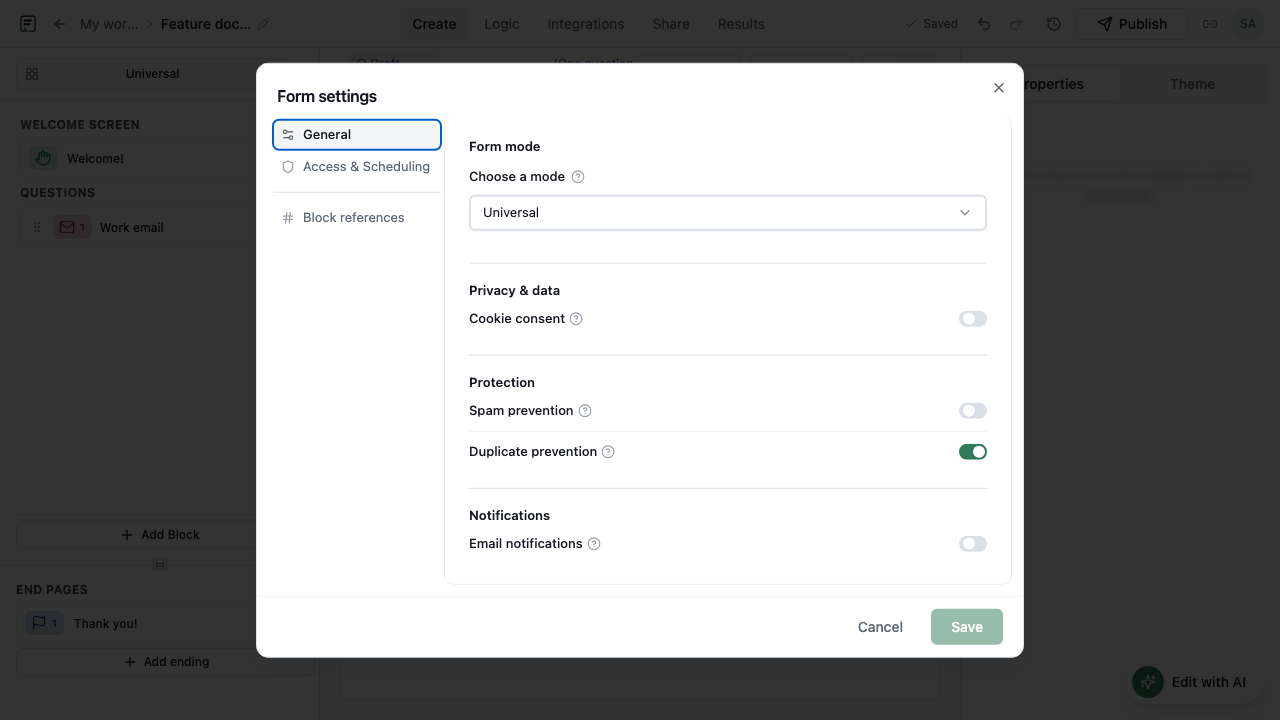
- Open the form and select Settings above the canvas.
- Choose Access & Scheduling. A banner shows whether the form is open or closed to new responses.
- To close now, turn off Accept responses.
- To close later, turn on Close schedule and pick a date and time in Close at.
- Edit the Closed message. The default is This form is no longer accepting responses.
- To cap the total, turn on Response limit and set the Maximum number of complete submissions.
- To stop repeat submissions, turn on Per-visitor limit, set Max submissions and a Period (Lifetime, Daily, Weekly, Monthly or Yearly), and edit the Limit message.
- Select Save. You see Form settings saved.
Questions
Does the response limit count partial responses?
No. Response limit counts complete submissions only.
Can I reopen a closed form?
Yes. Turn Accept responses back on, or clear the schedule or raise the limit that closed it, and select Save.