Publish and share your first form
Checked against the product on November 25, 2026
Short answer
Select Publish in the top-right corner of the builder. Once the form is live, open the Share tab and choose Share the link to copy the public URL. Later edits stay in draft until you select Update.
A form collects responses only after it is published. Publishing creates a version, and every response is stored against the version the respondent filled in. Until you publish, the Share tab shows Publish to share.
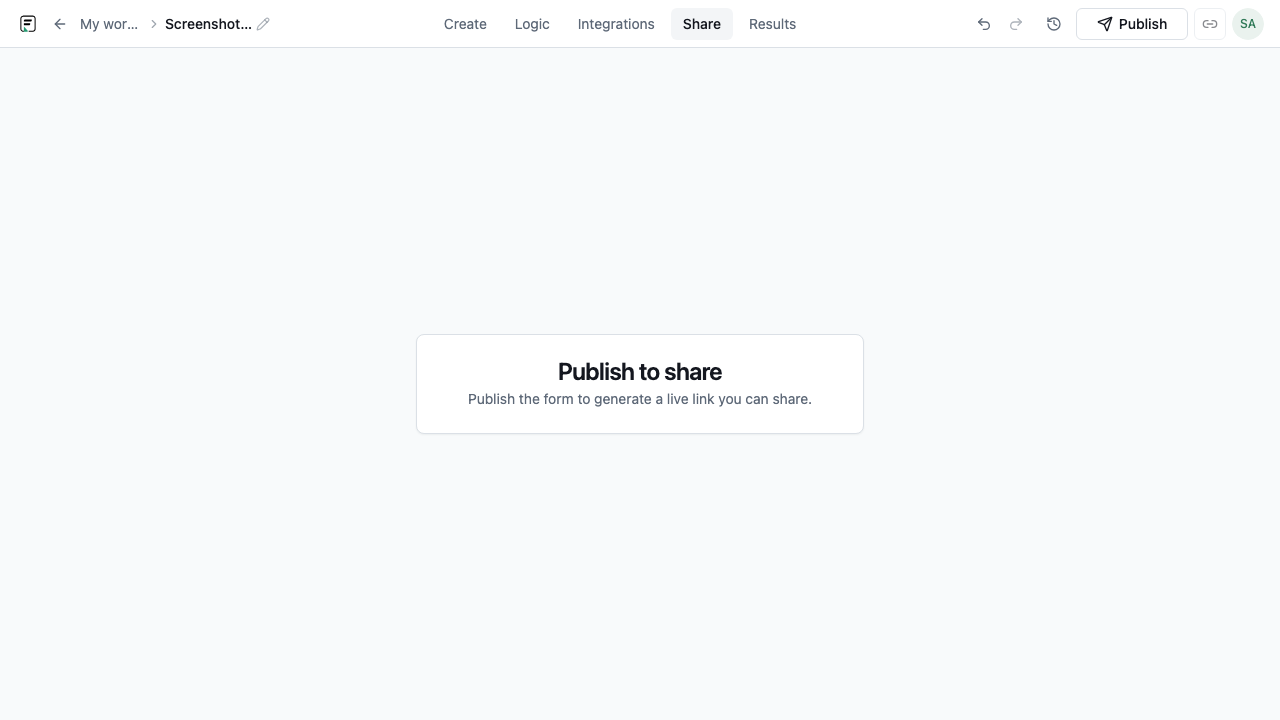
- Open the form in the builder and select Preview to check it one last time.
- Select Publish in the top-right corner. You see Form published when it is live.
- Open the Share tab and choose Share the link.
- Select the link to copy it, then paste it into an email, chat or social post. You can also use the Facebook, LinkedIn, X, WhatsApp and Email buttons under Share in:, or select Get QR code.
- Open the link in a private browser window and submit a test response.
- Open the Results tab to check that your test response arrived.
You can also copy the link without opening the builder. In Forms, open the actions menu on a published form and select Copy link.
Questions
Why is the Publish button greyed out?
Hover over it to see the reason. The most common one is No changes to publish, which means the live version already matches your draft.
Can I embed the form instead of sending a link?
Yes. In the Share tab choose Embed in a web page or Embed in an email.